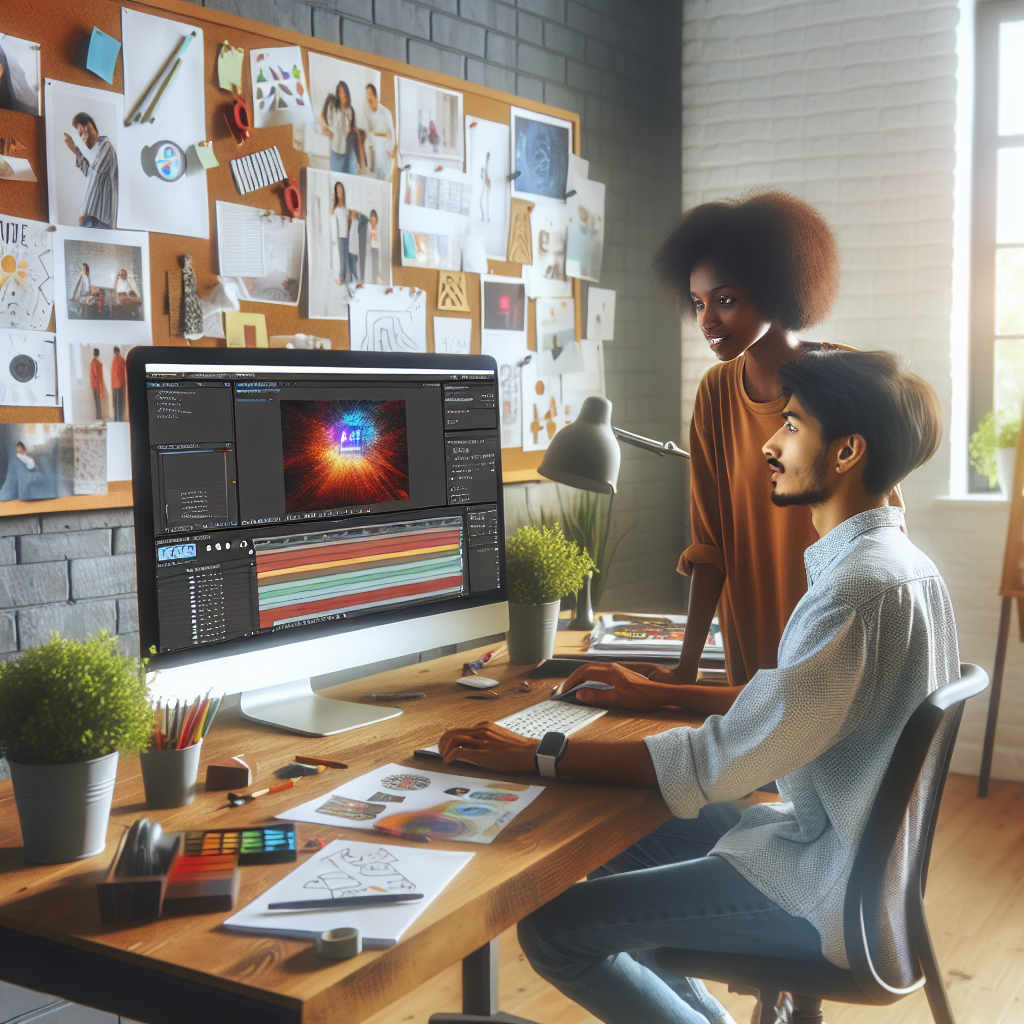
Mastering Your First After Effects Project: A Comprehensive Beginner’s Guide
Unlock your creative potential by learning how to start, develop, and complete an After Effects project from scratch! Whether you’re a beginner or looking to refine your motion graphics skills, this guide will walk you through every step.

Introduction: Why Learn After Effects Project Workflows?
Adobe After Effects has become the industry standard for motion graphics, visual effects, and animation. Learning how to create an After Effects project not only opens doors for creative expression but also provides essential skills for video editing, film production, and digital marketing. In this guide, we’ll cover the essentials of starting, managing, and finalizing your first project in After Effects, while focusing on the best practices, tips, and working with assets, compositions, and effects.
Setting Up Your After Effects Project
The first step to learn After Effects project workflows is understanding how to set up your workspace and organize your files. Begin by launching After Effects and creating a new project. Import your assets (videos, images, audio) by dragging them into the Project panel or using the File > Import option.
- Project Organization: Keep your assets in labeled folders (e.g., footage, audio, graphics) for easy access.
- Compositions: Think of compositions as canvases where you assemble your visuals. Create a new composition by clicking Composition > New Composition and set your desired resolution and frame rate.
- Timeline Navigation: Familiarize yourself with the timeline panel, where you’ll arrange and animate layers.
Understanding Layers and Keyframes
Layers are the backbone of every After Effects project. Each element (text, image, video, shape) sits on its own layer, allowing you to control visibility, position, scale, and more. Keyframes are used to animate these properties over time.
- Select a Layer: Click on the layer you want to animate.
- Enable Animation: Click the stopwatch icon next to the property (e.g., Position, Opacity).
- Move the Playhead: Drag the timeline indicator to a new point in time.
- Adjust the Property: Change the value, and a new keyframe will automatically be added.
By learning how to use keyframes, you can create smooth transitions, movement, and effects that bring your project to life. This is a core skill for anyone looking to learn After Effects project animation techniques.
Applying Effects and Presets
After Effects offers a vast library of effects and animation presets that make it easier to achieve professional results. You can access effects from the Effects & Presets panel and drag them onto your layers. Experiment with color correction, blurs, glows, and transitions to enhance your project.
- Search for Effects: Use the search bar to quickly find specific effects.
- Adjust Settings: Use the Effect Controls panel to fine-tune parameters and achieve the desired look.
- Save Presets: If you create a unique look, save it as a preset for future projects.
Common LSI keywords related to this topic include motion graphics basics, After Effects animation, video editing workflow, and visual effects tutorial.
Working with Text and Typography
Adding and animating text is a crucial part of most After Effects projects. Use the Type tool to add headlines, lower thirds, or animated titles. Customize font, size, color, and alignment in the Character panel. You can animate text by applying keyframes to properties such as Opacity and Position, or use pre-built Text Animators for dynamic typography effects.
Explore text animation presets to quickly add professional-looking motion to your titles or credits. Mastering these skills will help you stand out when working on After Effects project tutorials or creating content for social media, presentations, or film.
Exporting Your Finished Project
Once you’re satisfied with your animation, it’s time to render and export your project. Go to Composition > Add to Render Queue or use File > Export > Add to Adobe Media Encoder Queue for more format options. Choose your preferred output settings (codec, resolution, and file type) and click Render.
- Recommended Settings: H.264 for web and social media, QuickTime or AVI for high-quality archiving.
- Check Output: Preview your exported video to ensure everything looks as expected.
- Save Project Files: Always save a backup of your project files and assets for future edits.
Best Practices and Tips for Beginners
Learning to manage your After Effects project efficiently will save time and reduce frustration. Here are some essential tips:
- Label and color-code your layers for easy identification.
- Use pre-compositions to organize complex animations.
- Regularly save your project and use versioning to track changes.
- Leverage keyboard shortcuts to speed up your workflow.
- Explore online templates and assets to jumpstart your creativity.
As you continue to learn After Effects project workflows, remember that practice is key. Experiment with different animation techniques, effects, and project structures to find what works best for your style and needs.
Conclusion: Your Journey in Motion Graphics Starts Here
Creating your first After Effects project is a rewarding experience that lays the foundation for endless creative possibilities. From organizing assets to animating layers and exporting your final video, you’ve learned the essential steps to bring your ideas to life. Keep exploring tutorials, experimenting with new tools, and pushing the boundaries of your imagination—your journey in motion graphics has just begun!
Pro Tip: Don’t be afraid to make mistakes. Every project is a learning opportunity, and the After Effects community is full of resources and inspiration to help you grow.